# Finne bitlocker nøkkel tilhørende datamaskin

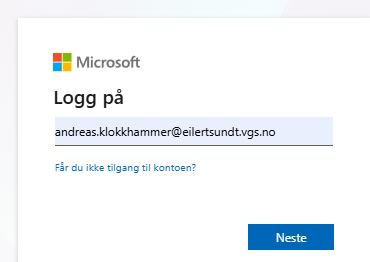
1. Åpne <span style="font-size: 11.0pt; font-family: 'Arial',sans-serif; mso-bidi-font-family: 'Times New Roman'; mso-bidi-theme-font: minor-bidi;">[https://myaccount.microsoft.com/device-list](https://myaccount.microsoft.com/device-list) og logg inn med microsoft kontoen din. (fornavn.etterhavn@eilertsundt.vgs.no)  
    </span>[![image.png](https://nywiki.eilertsundt.no/uploads/images/gallery/2026-08/scaled-1680-/5UogsJzbRQmIkiHo-image.png)](https://nywiki.eilertsundt.no/uploads/images/gallery/2026-08/5UogsJzbRQmIkiHo-image.png)
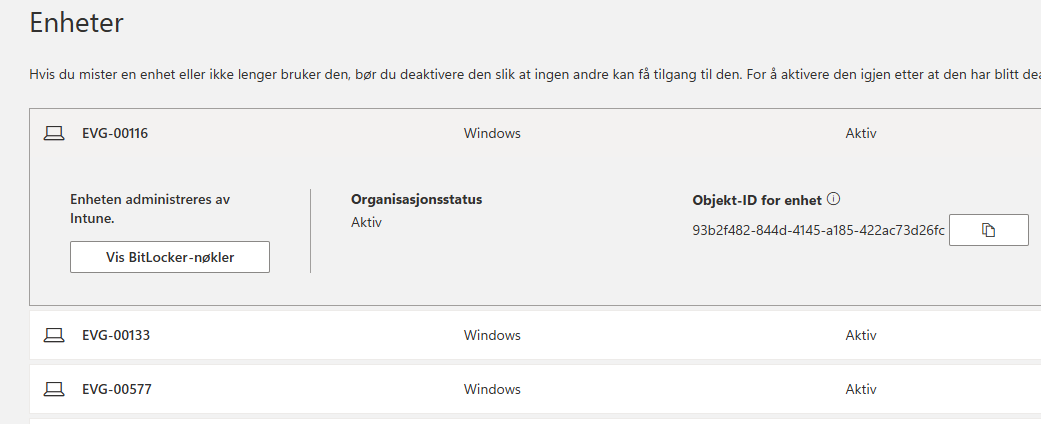
2. <span style="font-size: 11.0pt; font-family: 'Arial',sans-serif; mso-bidi-font-family: 'Times New Roman'; mso-bidi-theme-font: minor-bidi;">Finn datamaskinen som ber om bitlockernøkkel i listen og klikk "Vis Bitlocker-nøkler"  
    [![image.png](https://nywiki.eilertsundt.no/uploads/images/gallery/2026-08/scaled-1680-/X1fRdqJNUgDXQkTD-image.png)](https://nywiki.eilertsundt.no/uploads/images/gallery/2026-08/X1fRdqJNUgDXQkTD-image.png)  
    </span>
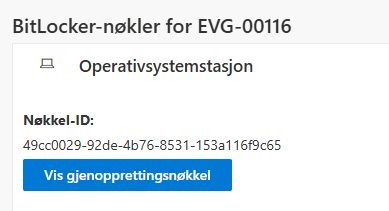
3. <span style="font-size: 11.0pt; font-family: 'Arial',sans-serif; mso-bidi-font-family: 'Times New Roman'; mso-bidi-theme-font: minor-bidi;">Deretter "Vis gjenopprettingsnøkkel".  
    [![image.png](https://nywiki.eilertsundt.no/uploads/images/gallery/2026-08/scaled-1680-/9Mk7k5B1YOatG9K6-image.png)](https://nywiki.eilertsundt.no/uploads/images/gallery/2026-08/9Mk7k5B1YOatG9K6-image.png)  
    </span>
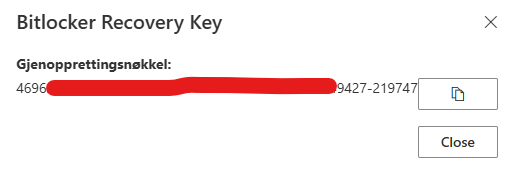
4. <span style="font-size: 11.0pt; font-family: 'Arial',sans-serif; mso-bidi-font-family: 'Times New Roman'; mso-bidi-theme-font: minor-bidi;">Gjenopprettingsnøkkel vises... Skriv denne inn på datamaskinen og trykk "Fortsett"</span>

[![image.png](https://nywiki.eilertsundt.no/uploads/images/gallery/2026-08/scaled-1680-/Jva5Kr7dS2OP83gY-image.png)](https://nywiki.eilertsundt.no/uploads/images/gallery/2026-08/Jva5Kr7dS2OP83gY-image.png)

<span style="font-size: 11.0pt; font-family: 'Arial',sans-serif; mso-bidi-font-family: 'Times New Roman'; mso-bidi-theme-font: minor-bidi;">  
</span>